Online Image Cropper
Crop images online with precise ratios and custom dimensions using ImagZilla. Adjust framing, remove unwanted areas, and create properly aligned visuals for websites, social media, and digital content. No signup required.

Drag & drop image
PNG, JPG, WebP up to 50MB
Elevate Your Productivity
Don't stop here. Explore our suite of AI-powered tools designed to simplify your digital life.
Crop Images with Proper Framing and Clean Composition
A good image crop tool helps keep the important part of an image visible while removing unnecessary outer space. Proper cropping improves visual balance and ensures images display correctly across different layouts and screen sizes.
ImagZilla provides a simple and reliable way to adjust image framing without affecting clarity, making it useful for both professional and everyday image editing needs.
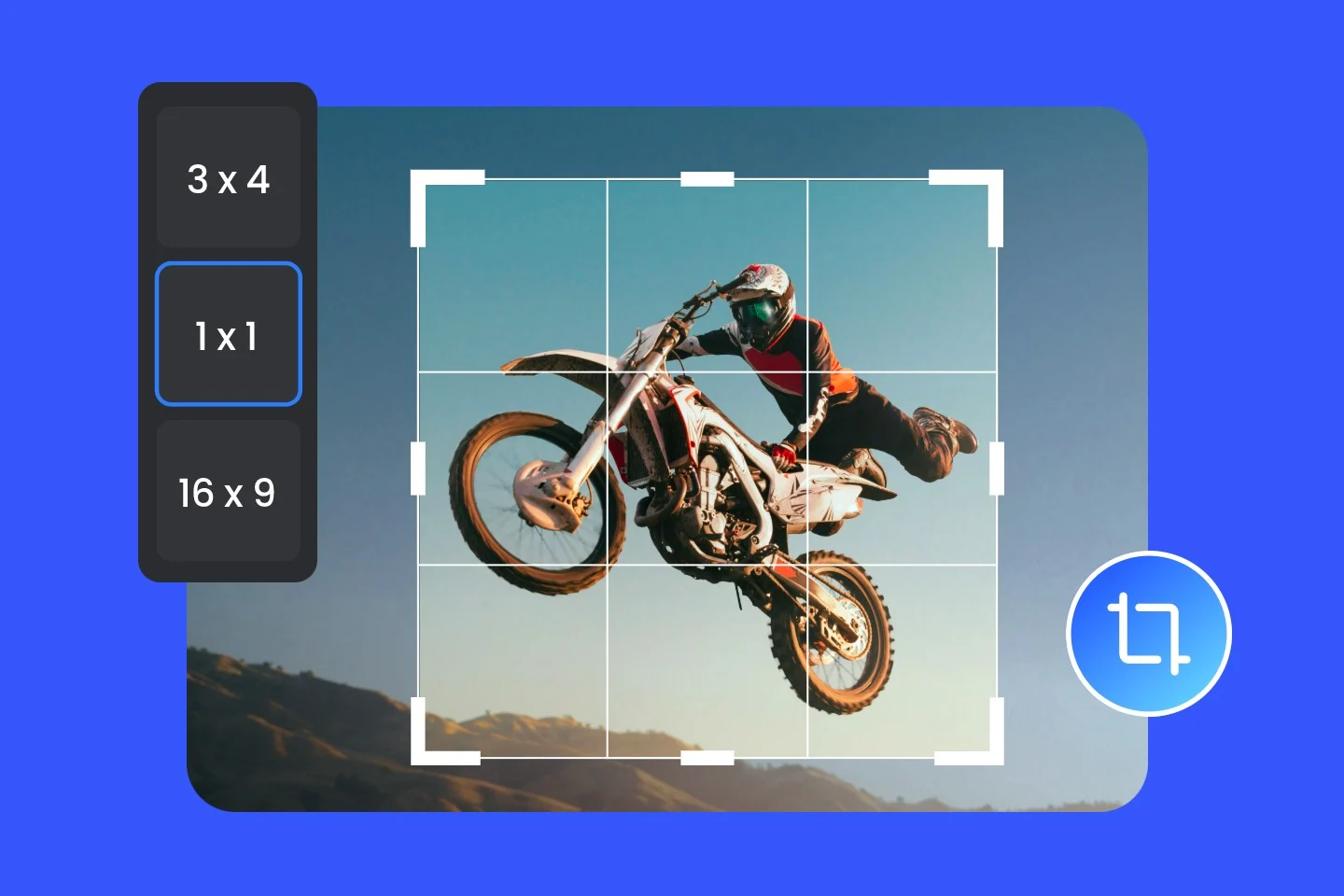
Preset Ratios for Social Media and Website Images
Images often require specific ratios to display correctly across platforms. Preset ratios help create consistent layouts without manual calculation.
Common ratio options include:
- ✔
Square ratio — for post images
- ✔
Vertical ratio — for story images
- ✔
Wide ratio — for banners and thumbnails
- ✔
Standard ratio — for photos
- ✔
Custom dimensions — for flexible layouts
ImagZilla helps create images that match platform requirements accurately.
Custom Width and Height for Exact Image Dimensions
Custom dimension input allows images to be cropped according to exact layout needs. This is useful when preparing visuals for blog images, ecommerce listings, website banners, thumbnails, and presentations.
Using correct dimensions helps maintain visual consistency across digital content.
How to Crop Image Online
Upload image from device
Adjust crop area using drag handles
Choose ratio or enter custom dimensions
Preview cropped image
Download final image
The process is simple and takes only a few seconds.
When to Use Image Cropper Instead of Image Resizer
Cropping removes unwanted outer parts of the image, while resizing changes overall width and height. Both tools are useful in image optimization workflow.
Use cropping when:
- You want to remove extra outer areas
- You want to focus on the main subject
- You need a specific aspect ratio
ImagZilla provides both crop and resize tools to support complete image preparation.
Image Cropping Helps Maintain Consistent Layout Design
Properly cropped images fit better into website sections, blog layouts, and mobile screens. Consistent image alignment improves readability and enhances overall visual appearance.
ImagZilla helps maintain balanced image presentation across devices.
Practical Uses of Online Image Cropper
Social Media Posts
Prepare images for social media posts with correct aspect ratios for each platform.
Ecommerce Product Photos
Adjust product photos for ecommerce listings with consistent framing and dimensions.
Blog Images
Create balanced blog images that fit perfectly into content layouts.
Profile Photos
Crop profile photos to clean square or circular formats for any platform.
Screenshot Editing
Focus on specific parts of screenshots by removing irrelevant surrounding areas.
Presentation Visuals
Prepare visuals for presentations with precise dimensions and clean composition.
Cropping helps images appear more professional and structured.
Online Image Cropper as Part of Image Optimization Workflow
Cropping is often the first step before resizing or compressing images.
Recommended workflow:
ImagZilla provides related tools for complete image optimization.
Supported Image Formats
Images remain clear and usable after cropping.
Common Mistakes When Cropping Images
Removing too much image area
Cropping too aggressively removes important context and reduces image usefulness.
Cutting important parts of image
Always check that key subjects or text are fully inside the crop selection.
Choosing incorrect ratio
Using the wrong ratio causes images to appear stretched or misaligned on platforms.
Cropping low resolution images
Cropping small images reduces usable pixel count and lowers final image quality.
Not checking preview before download
Always preview the cropped result before downloading to avoid errors.
Avoiding these mistakes helps maintain better image quality.
Tips for Better Cropping Results
- ✔
Keep main subject centered
- ✔
Select correct ratio for platform
- ✔
Avoid excessive cropping
- ✔
Use higher resolution images
- ✔
Check preview before downloading
ImagZilla helps produce consistent results with simple crop controls.
Related Tools
- →
Image Resizer
Resize image online free
- →
PNG Compressor
Compress PNG image online
- →
JPG Compressor
Reduce JPG image size online
- →
WebP Converter
Convert WEBP images online
- →
Image Enhancer
Enhance image quality online
Frequently Asked Questions
What is an online image cropper?
It allows selecting a specific part of the image and removing unwanted outer areas.
Why choose ImagZilla image crop tool?
ImagZilla provides preset ratios, custom dimensions and fast browser processing.
Can I crop image to exact ratio?
Yes preset ratios and custom dimensions allow accurate cropping.
Does cropping reduce image quality?
Cropping removes outer areas while keeping the selected portion clear.
Which formats are supported?
JPG PNG WebP GIF BMP formats are supported.
Can I crop image on mobile?
ImagZilla works on mobile tablet and desktop browsers.
Is this tool free?
The ImagZilla crop tool is free and easy to use.
Crop Images Online with Accurate Ratio and Size
Use online image cropper to adjust framing and create properly aligned visuals for websites, social media and digital content.